
 Nayan Dhumal
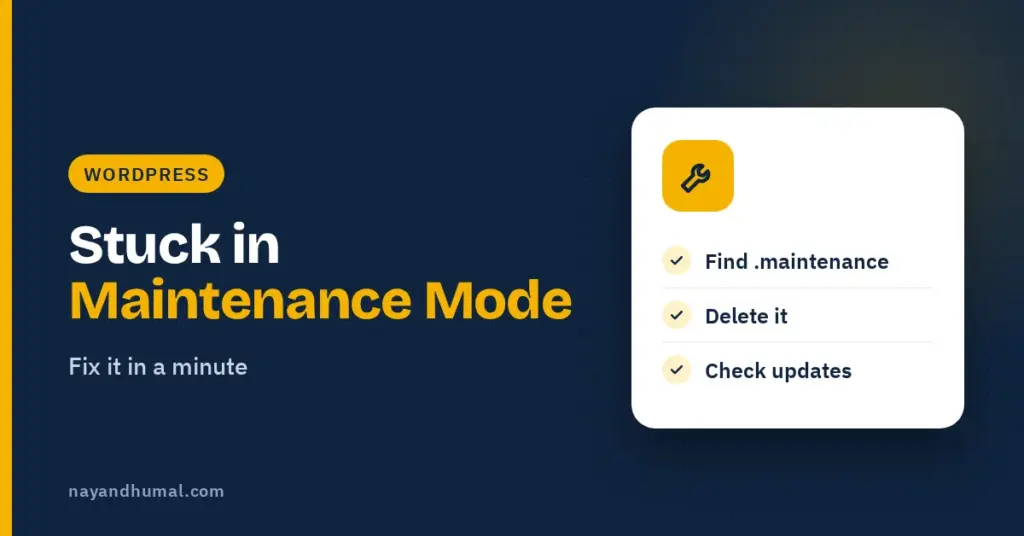
If your WordPress site shows “Briefly unavailable for scheduled maintenance. Check back in a minute.” long after an update, it is stuck in maintenance mode. During updates, WordPress creates a temporary file called .maintenance in the site’s main folder. If the update is interrupted, that file is not removed. Deleting it usually fixes the problem in a minute. This guide shows how, and how to check the update finished properly.
Maintenance mode is normal during an update. It usually lasts a few seconds.
When it does not go away, the cause is almost always an update that stopped part way, often because the browser tab was closed, the connection dropped or the server timed out.
Key takeaways
- The message comes from a temporary .maintenance file.
- WordPress normally deletes it when an update finishes.
- If an update is interrupted, the file stays and the message stays.
- Deleting .maintenance from the main WordPress folder usually fixes it.
- Then check whether the interrupted update actually completed.
- Avoid updating many plugins at once on a slow server.
Step 1: Wait a few minutes
If you just clicked update, give it a few minutes. Large updates can take a little while. If the message is still there after several minutes, move on.
Step 2: Delete the .maintenance file
- Open your host’s file manager, or connect with FTP.
- Go to the main WordPress folder. It is the folder that contains wp-config.php, wp-content and wp-admin. It is often called public_html.
- Show hidden files. Files that start with a dot are hidden by default in many file managers.
- Find the file named .maintenance.
- Delete it.
- Reload your site. It should load normally again.
Can’t see the file?
Look for a setting called “Show hidden files” or “Show dotfiles” in your file manager. If you still cannot find it, ask your host’s support team to remove it for you.
Step 3: Check the update finished
Deleting the file brings the site back, but the update that caused it may be incomplete.
- Go to Dashboard, then Updates, and see whether the plugin, theme or core update is still listed.
- If it is, run the update again, one item at a time.
- Open the homepage and a few posts to check everything works.
- Clear your caching plugin’s cache.
If the site breaks after removing the file
Sometimes an interrupted update leaves a plugin half updated, which can cause errors.
- Deactivate the plugin you were updating. If you cannot reach the dashboard, rename its folder in wp-content/plugins using the file manager.
- Reinstall the plugin, or update it again.
- If nothing works, restore a backup. My guide on restoring WordPress from a backup explains how.
My guide to common WordPress errors covers other problems you may see.
How to avoid it next time
- Do not close the browser tab while updates run.
- Update a few plugins at a time instead of everything at once.
- Update when your connection is stable.
- Keep a recent backup before updating.
My guide on keeping WordPress updated safely covers a simple routine.
Maintenance mode plugins are different
Some site owners use a maintenance mode or “coming soon” plugin on purpose, for example while redesigning. If you see a custom maintenance page with your logo, it is probably that plugin, not a stuck update. Turn it off in the plugin’s settings.
Frequently asked questions
Why is my WordPress site stuck in maintenance mode?
Usually because an update was interrupted and the temporary .maintenance file was not removed.
Where is the .maintenance file?
In the main WordPress folder, the same folder that contains wp-config.php.
Is it safe to delete the .maintenance file?
Yes. It is a temporary file WordPress creates during updates. After deleting it, check that the update completed.
Why can’t I see the .maintenance file?
Files starting with a dot are hidden by default. Turn on “show hidden files” in your file manager.
How do I stop it happening again?
Update fewer plugins at once, keep the tab open until updates finish and update on a stable connection.